IFS Invoice AI Agent is part of the Boomi Marketplace program. Visit marketplace.boomi.com to browse additional pre-built solutions that you can install directly into your Boomi platform account!
Click here to install this recipe
Contents
4. Configure Process Properties
5. Authenticate OpenAI Operations
1. Prerequisites
-
An OpenAI account with credit.
-
IFS set up for Boomi.
-
Ensure that the CreateAndImportDocument and ManualSupplierInvoiceHandling Projections are enabled and accessible via IFS API Explorer.
-
-
Mail Connection (optional).
-
FTP Connection (optional).
2. Create OpenAI Assistant
-
Log in to the OpenAI Platform, navigate to the Dashboard, and open the Assistants section.
-
Create a new Assistant and name it how you want.
-
Preload the Assistant with System Instructions, we recommend the following:
-
You are a system designed to extract invoice lines from provided documents. You exclusively respond in JSON and do not use pleasantries. You are designed to connect directly to a RESTful interface which requires JSON.
-
-
Once the Assistant is configured, copy its ID.
3. Create OpenAI API Key
-
While in the OpenAI Platform, navigate to the API Key section of the Dashboard.
-
Create a new API Key with your desired name then save your API Key and store it safely, you will never be able to view this value again.
4. Configure Process Properties
-
Open the AI Agent Process Properties.
-
Enter the Assistant AI into the Process Properties and configure the remaining Properties.
Property
Description
OpenAI Assistant Id
Assistant ID
KeyRef Prefix
The AI Agent uses a KeyRef to attach the Invoice File to the Invoice in IFS. This Process Property allows you to enter a prefix that will be prepended to the KeyRef (followed by the Invoice Id.)
Example
Property Value: COMPANY=HCM TRAIN
Generated KeyRef: COMPANY=HCM TRAIN^INVOICE_ID=30
The KeyRef is generated in the ‘Generate KeyRef’ Message Step in the '[SUB] Attach Invoice Via DocMan' Subprocess.
Note
If you want to use your own KeyRef, set a Dynamic Document Parameter ‘DDP_KeyRef’ before calling the AI Agent, and it will use that to attach the Document to.
Invoice Currency Code
IFS Currency Code to use for the Invoice.
Example
Property Value: CAD
Invoice Supplier No
IFS Supplier No to use when creating IFS Invoices.
Company
IFS Company ID the Invoice is related to.
5. Authenticate OpenAI Operations
-
Inside of Boomi, navigate to the HTTP Connector Operations, these are the REST API calls the AI Agent makes to OpenAI.
-
Open the Operations and you will find a Header called “Authorization,” set its value to ‘Bearer ' followed by your API key (i.e. ‘Bearer skproj-AAxz…’)
6. How To Call The AI Agent
The AI Agent comes with a couple of use-cases that demonstrate the capabilities of the AI Agent. To use them, the Mail and FTP Connections must be setup with the appropriate authentication.
The Main implementation Process for the AI Agent requires a binary file input which contains your invoice. Then a Dynamic Document Property must be configured on this input to the desired file name of the Invoice file. This filename will be shown inside of IFS when the Invoice is created and Document attached.
Once the AI Agent is called, it will use your provided Assistant to extract Invoice Lines from the attached Document. It will then create an Invoice in IFS to attach the Invoice Lines to, as well as the Invoice Document.
6.1. Supported File Types
By default the AI Agent supports a selection of files types. The AI Agent captures the File Extension from the File Path, ensure that the File Name is properly configured and represents the contents of the Invoice File:
-
.png
-
.jpg
-
.doc
-
.docx
-
.pdf
Note: If a document-type File is uploaded (i.e. docx or pdf) that does not contain text or only contains images, GPT will not be able to read its contents. Please use an image format instead.
7. Returned Data
Once the AI Agent has finished running, it will return an IFS Invoice Object, which contains all the information relating to the created Invoice.
7.1. Example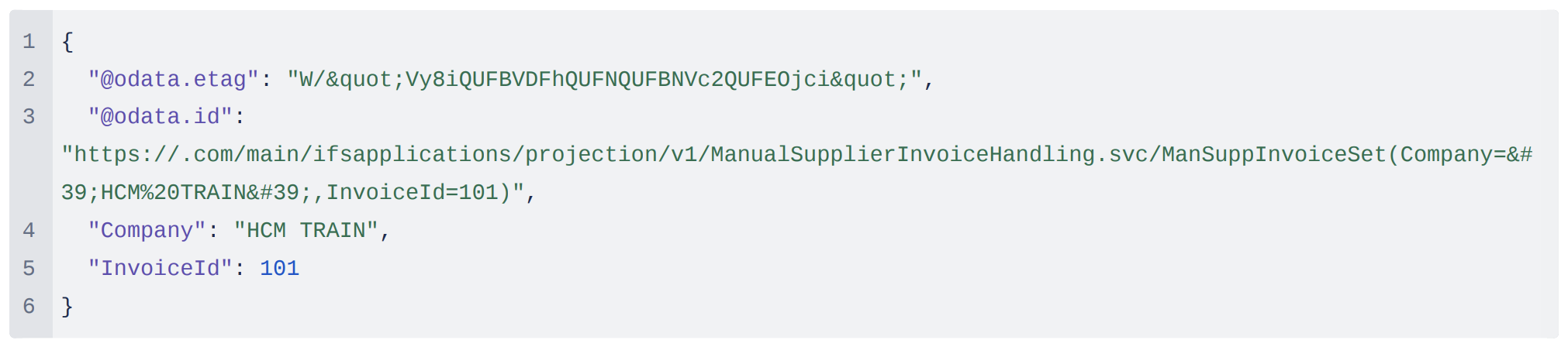 8. Invoice Tax
The IFS Invoice AI Agent can also collect per-line invoice tax, alongside the net totals. To enable this feature you will need to have Tax data configured in IFS, then open the ‘Internal Append Invoice Details’ Map. Connect the VatAmount between the left and right Profiles, after that populate the right Profile with your Tax values, i.e. TaxCode or TaxPercent.
Summary
An invoice processing AI Agent for IFS uses OpenAI to identify if a document is an Invoice, then passes this to IFS to create a Manual Supplier Invoice and attaches the document using IFS DOCMAN. This streamlines the Invoice management process for Finance Teams in IFS.