Account and Contact Sync From Microsoft Dynamics to Salesforce is part of the Boomi Discover program to facilitate migration between the two systems. Visit discover.boomi.com to browse additional pre-built solutions that you can install directly into your Boomi platform account!
Microsoft Dynamics 365 Customer Engagement product is one of the well known CRM systems. Salesforce is also one of the most powerful CRM’s available.
Microsoft has announced that it is in process of decommissioning, Dynamics 365 Customer Engagement product. As a result, some companies are migrating to Salesforce CRM.
Use this Boomi recipe to facilitate the migration. The process will transfer Accounts and Contacts, from Dynamics 365 Customer Engagement product, to Salesforce CRM.
It has built-in data quality checks, for cleansing your data during migration. It ensures that no duplicate Accounts and Contacts are transferred to your new CRM.
Click here to install this recipe
Before You Begin
Microsoft Dynamics 365 for Customer Engagement Connection:
- API Root Url: https://{TenantID}.api.crm.dynamics.com/api/data/v9.2
- OAUTH 2.0:
- Grant Type: Authorization Code
- Client ID: Client ID
- Client Secret: Client Secret
- Parameters:
- redirect_uri: https://platform.boomi.com/account/{Account_ID}/oauth2/callback
- resource: https://{TenantID}.api.crm.dynamics.com
- Access Token Url: https://login.windows.net/<your tenant domain>/oauth2/token?
- Resource Name: Resource
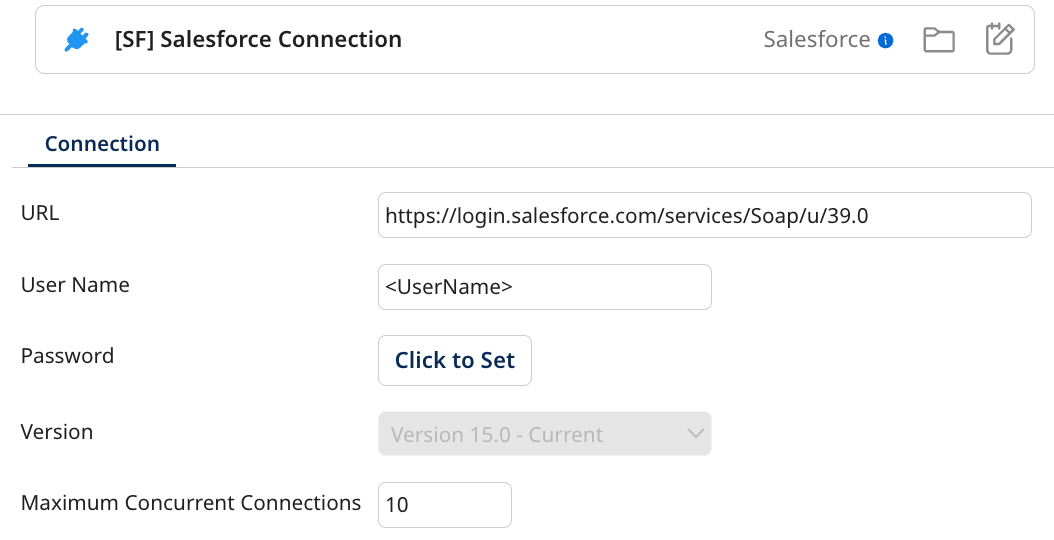
- URL:
- Username:
- Enter Username
- Password:
- Enter Password
Send MSD 365 Accounts and Contacts to SF
This process reads Accounts and Contacts from Dynamics 365 Customer Engagement, and creates the ones that are not duplicates, into Salesforce.Start Step:
The Start step is configured to “No Data” to indicate that there will be no incoming data when this process starts.
Branch Step:
Branch 1:
Read Accounts and create them in Salesforce. While creating, ensure that if Account exists, do not create a duplicate.
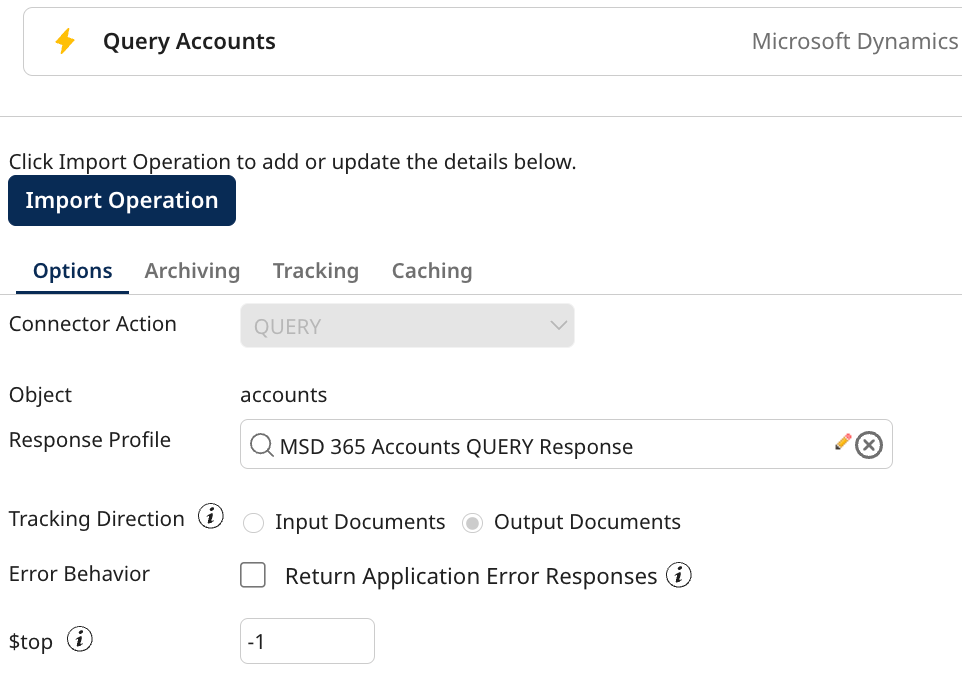
Microsoft Dynamics 365 for Customer Engagement Connector Step:
- Connection: MSD 365 Connection
- Action: Query
- Operation: Query Accounts
- Connector Action: Query
- Object: accounts
- Response Profile: MSD 365 Accounts QUERY Response
- Tracking direction: Output Documents
- Error Behavior: unchecked
- $top: -1
- Use this field, in case you wish to limit the number of records returned. You can input values 1 - 200. The entered number will represent the number of records to be returned.
 Map Step:
Map Step will map the Account information associated with the opportunity, from the MSD 365 Accounts QUERY Response JSON profile, to a Salesforce XML profile named SF_Account_CREATE_Request.
Try/catch step:
- Retry count: 0
- Failure trigger: Document Errors
Try path:
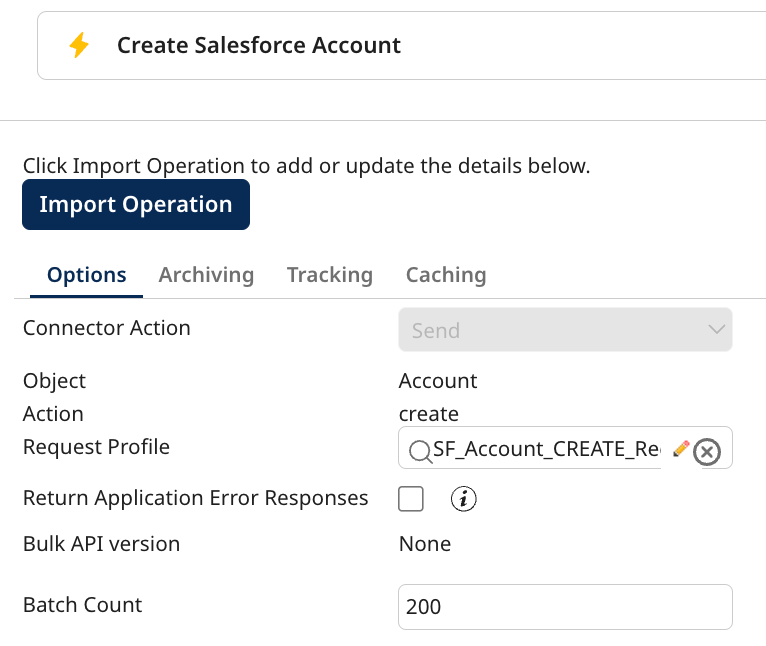
Salesforce Connector Step:
-
Connection: Salesforce Connection
-
Action: Send
-
Operation: Create Salesforce Account
-
Connector Action: Send
-
Object: Account
-
Action: create
-
Request Profile: SF_Account_CREATE_Request
- Return Application Error Responses: unchecked
- Batch Count: The default is 200.
- Create Options : Salesforce profile and its elements are loaded after successful import.
-
 Catch path:
If you would like to perform certain actions on detected duplicate Accounts, you would create the logic, at this path.
Branch 2:
Read Contacts and create them in Salesforce. While creating, ensure that if Contact exists, do not create a duplicate.
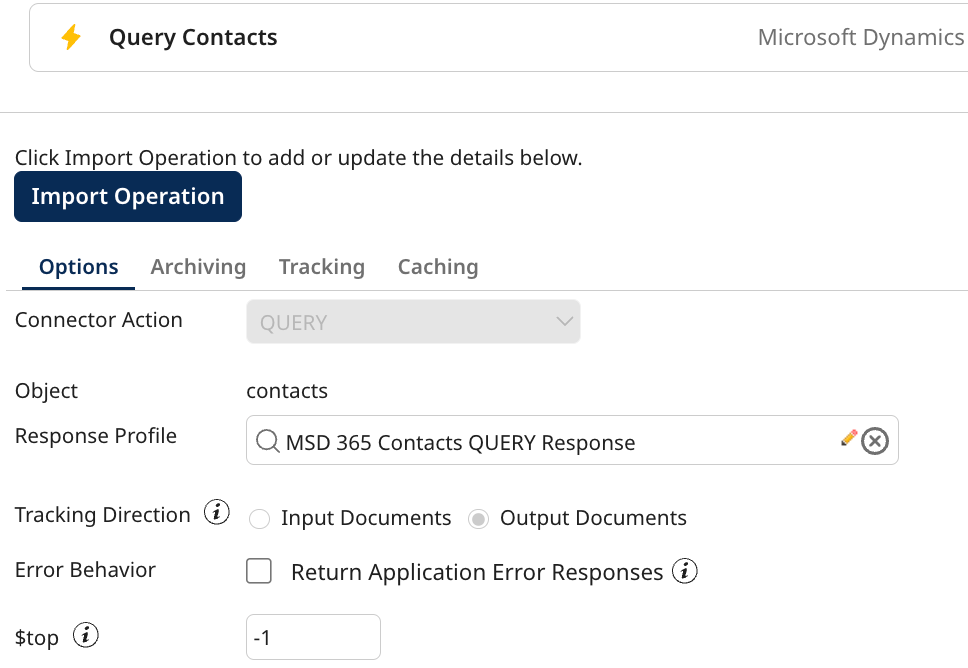
Microsoft Dynamics 365 for Customer Engagement Connector Step:
-
Connection: MSD 365 Connection
-
Action: Query
-
Operation: Query Contacts
-
Connector Action: Query
-
Object: contact
-
Response Profile: MSD 365 Contact QUERY Response
-
Tracking direction: Output Documents
-
Error Behavior: unchecked
-
$top: -1
-
-
Flow Control step:
-
Parallel Processing Type: Threads
-
Number of Threads: 0
-
Options: Run each document individually
Map step:
Map step will map the Contact information associated with the Account, from the MSD 365 Contact QUERY Response JSON profile, to a Salesforce XML profile named SF_Contact_CREATE_Request.
Inside the Map, at Functions part, we do a Connector Call where we query the account name associated with the contact to return the AccountID from the Salesforce account created in the first route:
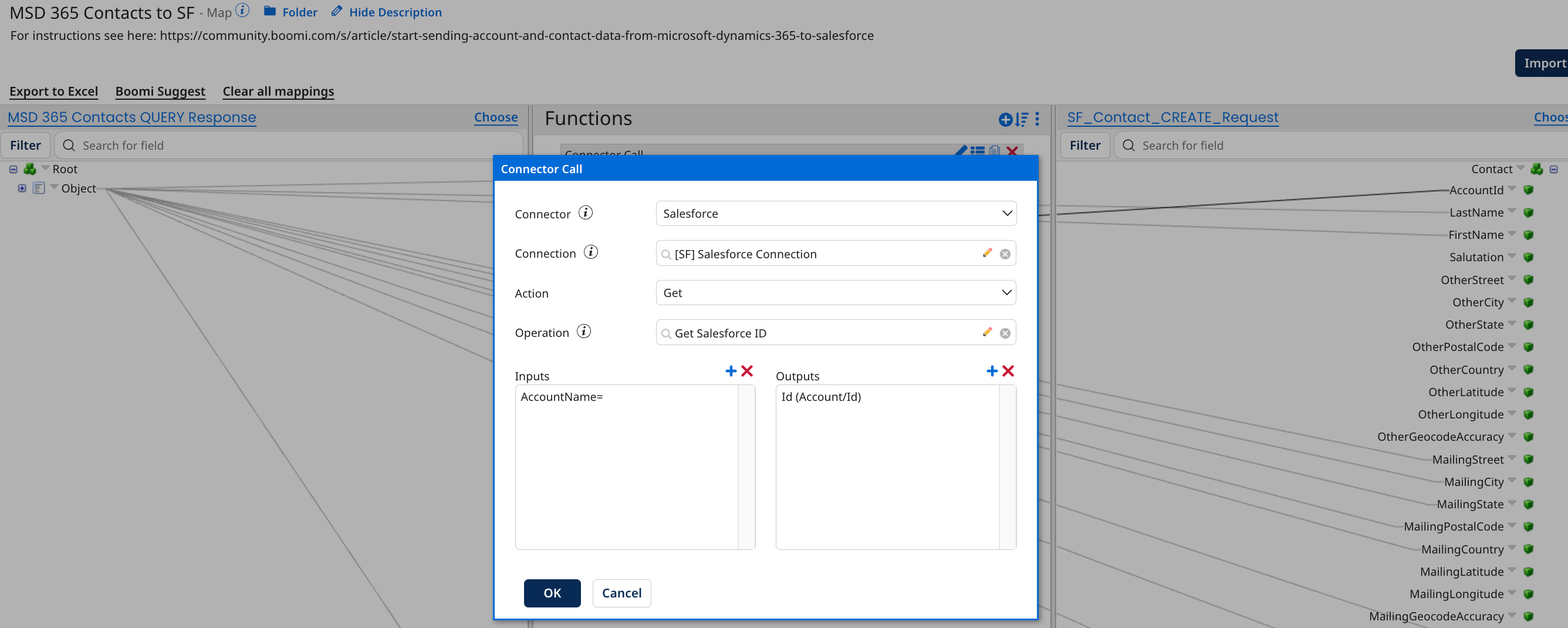 Connector Call:
Salesforce Connector:
-
Connection: [SF] Salesforce Connection
-
Action: Get
-
Operation: Get Account Name Salesforce
-
Connector Action: Send
-
Object: Account
-
Action: query
-
This action reads records in Salesforce, from the object defined above.
-
Response Profile: SF_Account_QUERY_Response
-
Query limit: -1
-
Inputs: AccountName=
-
Outputs: Id (Account/Id)
-
-
Try/catch step:
-
Retry count: 0
-
Failure trigger: Document Errors
Try path:
Salesforce Connector Step:
Connects to Salesforce and sends contact data to create an Account.
-
Connection: [SF] Salesforce Connection
-
Action: Send
-
Operation: Create Contacts to Salesforc
-
Connector Action: Send
-
Object: Contact
-
Action: create
-
Request Profile: SF_Contact_CREATE_Request
-
Return Application Error Responses: unchecked
-
Bulk API version: None
-
Batch Count: 200
-
Create Options : Salesforce profile and its elements are loaded after successful import.
-
-